
Source visual
Mosaic Prism
The first contributing scene: tighter lattice structure, harder seam detail, and the graphic pressure that anchors the hybrid.
Native macOS app for AI live visuals
Remix the scene with a prompt. Never stop the set.
Fullscreen output
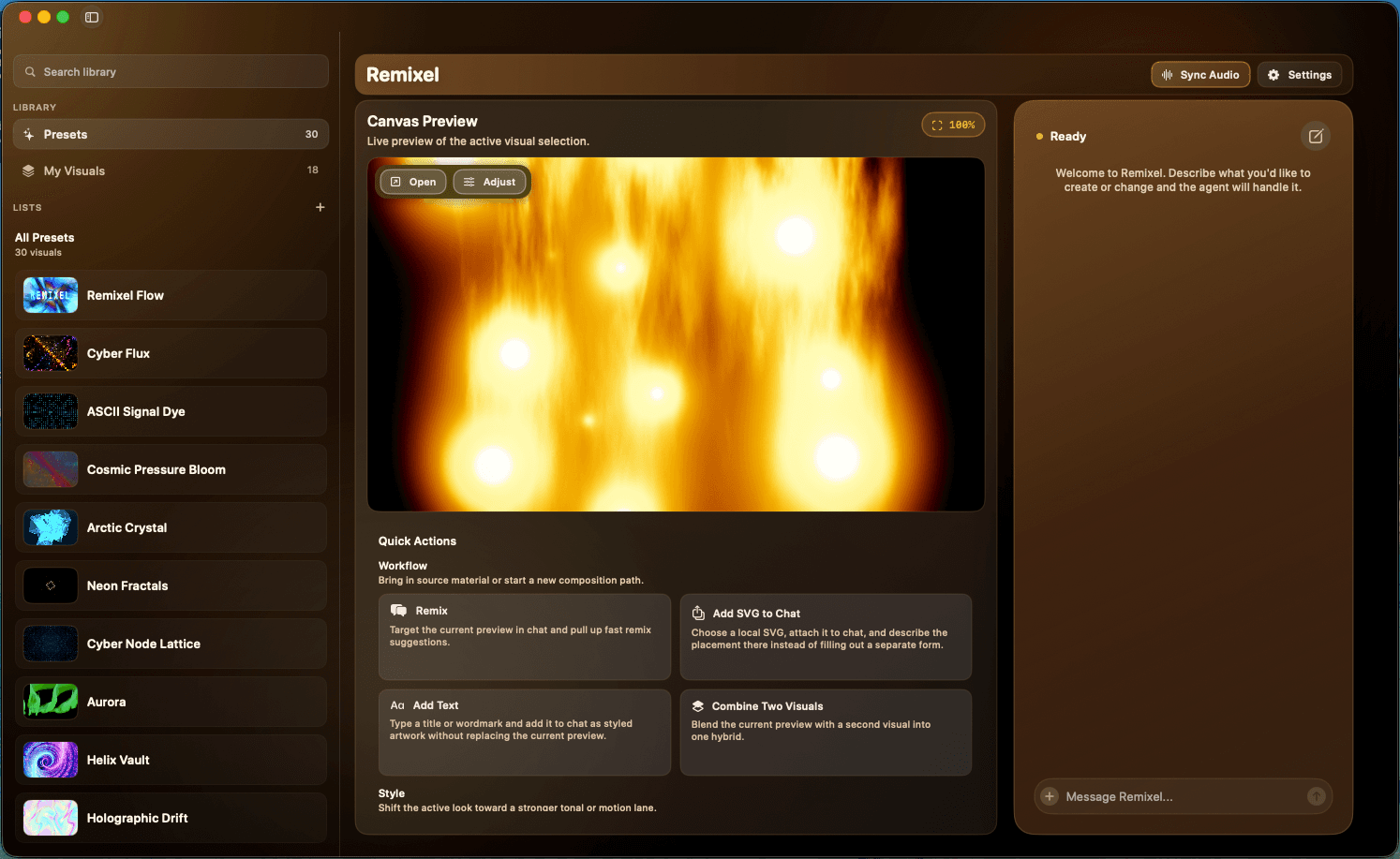
Browse presets, preview the canvas, and prompt remixes in one Mac window while the fullscreen output stays live.
Free Mac download · license key delivered by email · no card required.
Requires a paid OpenAI subscription for remixing and scene combinations. Visual output renders locally on macOS.
For DJ sets
Built for nights where the visual needs to keep moving with the set instead of sitting on one safe preset for hours.
For installations
Bring in your own media, shape the motion, and keep the atmosphere alive long after a static loop would have gone flat.
For ambient rooms
The same composition can sit back, breathe, or react harder without rebuilding the entire visual stack.
01
Preset library
Browse and swap looks without dropping the live scene in the center.
02
Live canvas
Keep the preview visible while you audition the next move for the room.
03
Assistant panel
Use the operator surface and fullscreen output side by side instead of context-switching.
Combine visuals
Pair two donor scenes inside Remixel, then let the hybrid keep the pressure, color, and motion traits that matter from each source.
Source visual
The first contributing scene: tighter lattice structure, harder seam detail, and the graphic pressure that anchors the hybrid.
Source visual
The second contributing scene: softer orbital bloom, chromatic lift, and the luminous color spread that opens the combined result up.
Combined visual
One fused scene built inside Remixel from the two source visuals above. It keeps the lattice pressure from Mosaic Prism and opens it up with the bloom, spread, and chromatic lift from Prismatic Orbit Bloom.
REMIX AND ADD TEXT
The same workflow can take a single source visual and push it with plain-language direction: shift the palette, add the wordmark, and keep the underlying prism structure alive.
Source visual
Start from the original prism scene, then keep its structure in place while you redirect the palette and add a centered wordmark.
Text direction
make this rainbow colored and add pixel bright lettering in the center saying Remixel
Prompt
Instead of adding a second donor visual, this version uses a direct text instruction to recolor the scene and place bright pixel lettering at the center.
Remixed preset
The resulting Remixel preset keeps the prism geometry, shifts it into a brighter rainbow plate, and locks the pixel REMIXEL wordmark into the middle of the frame.
AI Remixing Workflow
Bring the vibes; own the result.
Start with an uploaded visual or a scene from our library, remix it or combine it with another scene, prompt the next move, and present the fullscreen audio-reactive output.
Playing: Remixel Mosaic — remixed inside Remixel
Native Mac app
Direct-download operator surface, not a browser tab.
AI remixing
Combine scenes and prompt the next move without resetting.
Fullscreen output
Keep the room output separate from the controls.
Media + audio inputs
Use local folders, photos, mic, and app audio when needed.
How It Works
Remixel works best when it behaves like a live tool. Start with a scene that has enough shape to matter, then keep pushing it instead of starting over every time the room changes.
01
Begin with a live look that already has mood, motion, and enough structure to push further.
02
Blend scenes, darken the palette, slow the pace, or turn up the pressure while keeping the part that is already working.
03
The operator view stays usable on your Mac while the fullscreen output stays separate for the audience.
Prompt The Turn
The point is to preserve the part the room is already responding to, then bend density, pace, and atmosphere from there without losing the set.
pull it darker
blend these two
more smoke
slow the motion
bring in this photo
make it hit harder
Built for live sets
Remixel is for people who need to keep a look alive in a room, not for people who want to rebuild every visual from scratch.
OpenAI required
An active OpenAI subscription powers the remixing and scene-combination workflows that make the app useful.
Fullscreen stays separate
The final visual renders locally on macOS while the operator surface stays open for the next move.
What Can Bend The Scene
Start from the core canvas, then bring in mic, app audio, or text only when the room needs a new turn.
Bring in your own text, logos, and reference material when the set needs more than abstraction.
Let live sound push movement, density, and energy when you want the room inside the scene.
Use still images as texture, collage, and memory when the visual needs something more personal.
Shape visuals from the music already playing on your Mac instead of relying on a mic alone.
Human Support
The support path is direct. If a setup feels off or a scene is behaving badly, you can reach a person without fighting a help maze.
Support email
kelly@bloomtech.comInclude this in bug reports
FAQ
Remixel is a direct-download macOS app for live visuals. You start from a scene, remix or combine looks with OpenAI, and send the result to a separate fullscreen canvas.
Remixel is free. Enter your email through Polar and it will send you a unique license key plus the download link.
The email-delivered key lets us understand how many people are claiming Remixel and gives you a reliable way to recover and manage your license.
Yes. Remixel's core remixing and scene-combination workflows require OpenAI account sign-in and an active OpenAI subscription.
No. Remixel is built around a local-first workflow. It accesses photos or local folders only when you explicitly choose them.
Depending on what you turn on, macOS may ask for folder access, microphone, photos, or Screen and System Audio Recording access.
Want Product Updates?
Drop your email and we'll send the Remixel demo reel, plus new preset drops and release notes as they ship. A couple of emails a month, no spam.
Set up your first show
Practical guides to getting your display, music, and first scenes working together.
Your first live set
Set up Remixel for a DJ set: choose a scene, keep your Mac controls separate from the audience display, and rehearse your visual changes.
5 min read
Music into motion
Choose app audio, the system mix, or a microphone in Remixel. Check macOS permissions and troubleshoot visuals that do not respond to music.
5 min read
Free Mac Download
Enter your email through Polar, receive your unique key, and download the signed Mac app. There is no charge and no payment method required.
Free
One full Remixel license for your Mac, delivered to your inbox. Your email is used for license delivery and to measure real product claims.
Email Me a Free License